Activate License
How to activate Small BIM PRO
Version 2.1.0+ — Updated Activate License
Starting from version 2.1.0, the license activation process has been updated. Watch the video below for the latest instructions.
View previous activation guide (before v2.1.0)
Enter License Key / Activate (if available)
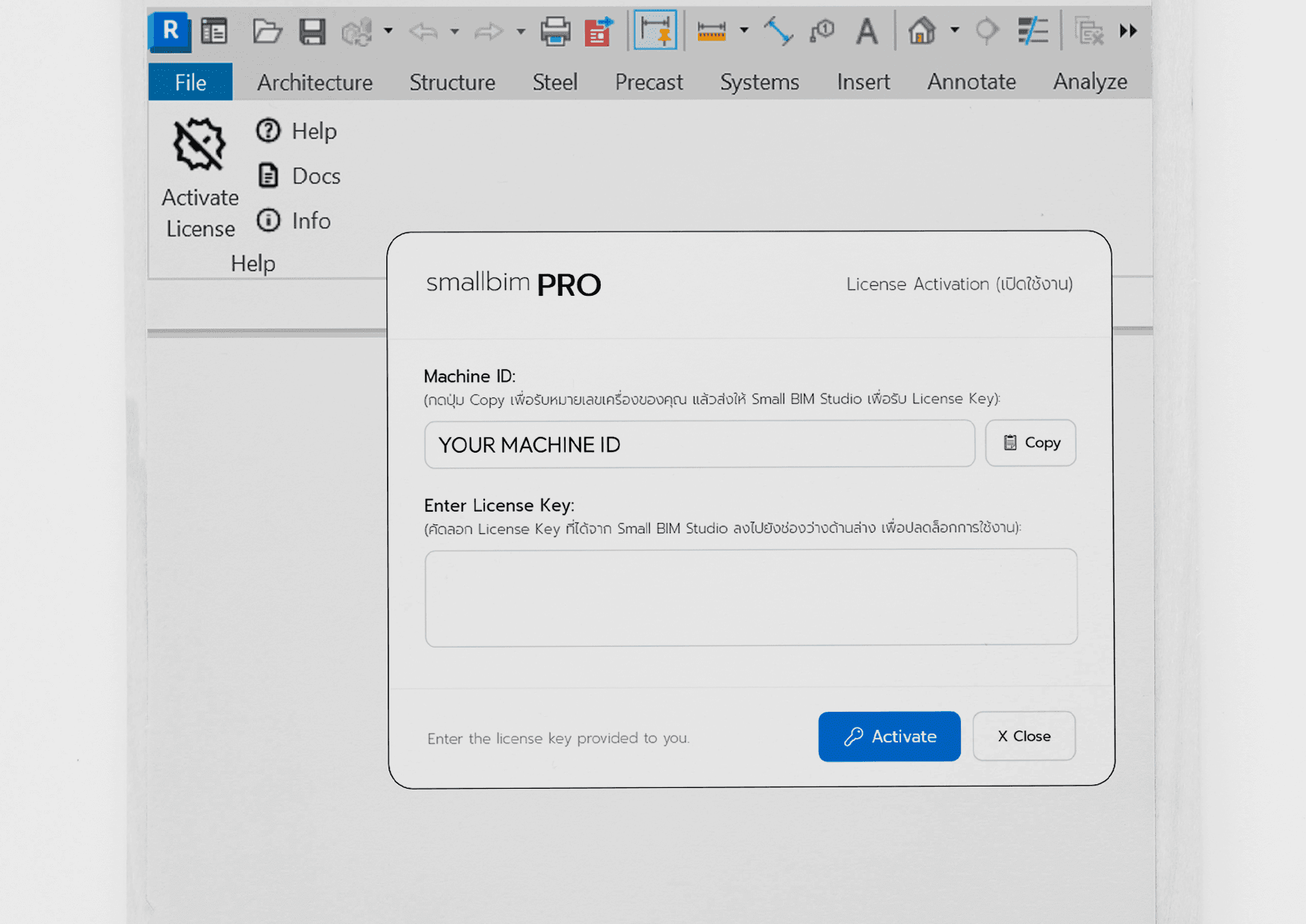
1. On first launch, features will not be available yet. All users must activate the license first by clicking the Activate License button.
2. Enter the Activate License Key in the Enter License Key field below, then click the Activate button.
3. Then restart Revit once so that all features are ready to use.
Note: If you don't have an Activate License Key yet, copy the Machine ID displayed in the first field and send it to the Small BIM Studio admin to request an unlock code (first time only, or when moving to a new machine). You will receive a reply shortly with your Activate License Key.
Activation complete
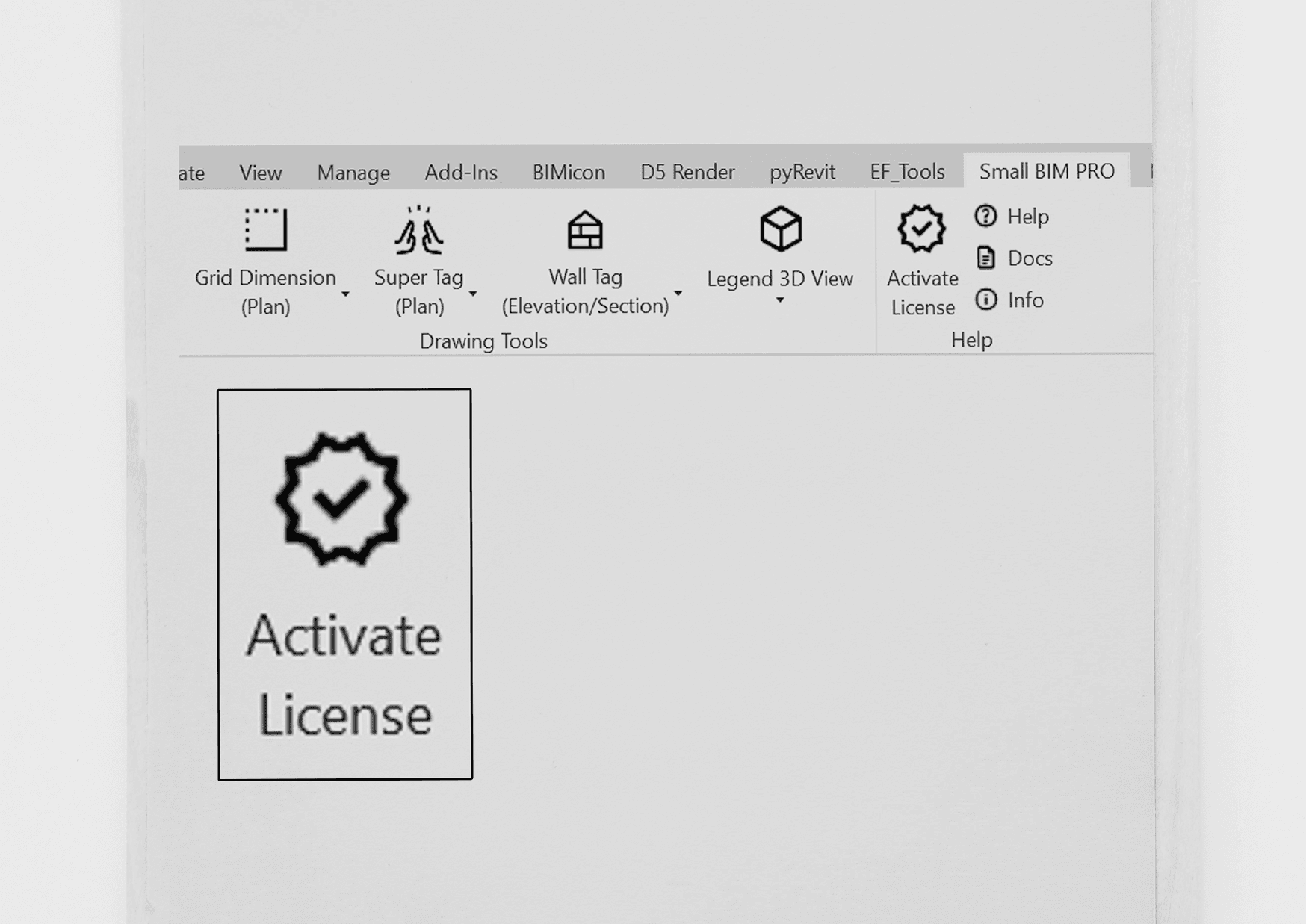
Once all steps are completed, you will see the unlock icon as shown. You can now start using Small BIM PRO.
Enjoy using the software!
Troubleshooting / Common Issues
- Tab not visible after installation: Check Admin privileges / Restart Revit / Unblock the file
- .addin not loading: Check the folder
%APPDATA%\Autodesk\Revit\Addins\20XX - License not working: Check for typos/spaces and verify internet connection (if required)